Most Wi-Fi complaints in the office are really roaming complaints. A video call freezes in a hallway. A scanner pauses between aisles. Meanwhile, the signal bars on the device still look healthy. Therefore, IT teams often blame the network core when the real problem is a client that will not let go of its current access point. This post explains how enterprise Wi-Fi roaming works and what you can control.
Who Decides When a Device Roams
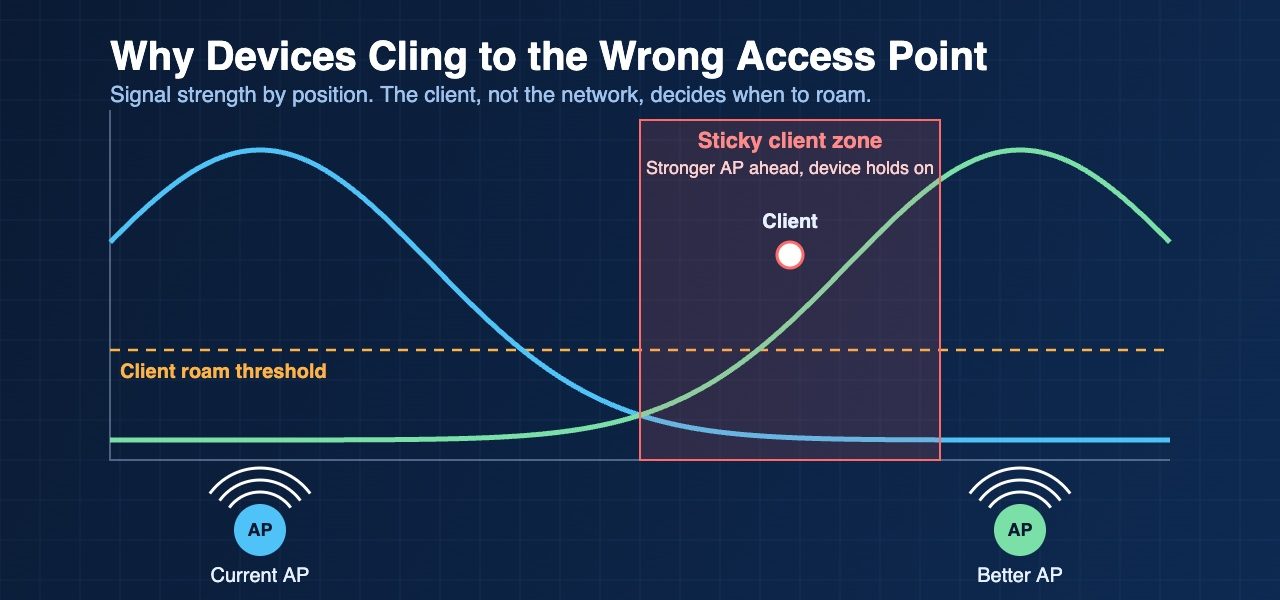
The client decides. The access point does not. This surprises many IT directors. Specifically, every phone, laptop, and scanner runs its own roaming logic, and each vendor tunes it differently. In practice, a device usually stays on its current access point until the signal falls below a private threshold. Only then does it start scanning for a better option. As a result, a device can hold a weak link while a much stronger access point sits twenty metres away.
This behaviour is called a sticky client. It is common, and it is rarely a fault. Instead, it is a design choice made by the device maker to save battery and avoid unnecessary handoffs. Consequently, the network has to guide the client rather than command it.
What Actually Happens During a Handoff
A roam has four steps. First, the client scans for candidate access points. Next, it picks one and authenticates. Then it reassociates. Finally, the encryption keys are established. On a network using WPA3 Enterprise, the authentication step can add noticeable delay if every roam requires a full login with the RADIUS server.
Fast roaming standards shorten this process. For example, 802.11r lets the client reuse keys it already negotiated. Similarly, 802.11k gives the client a list of nearby access points, so it scans less. Additionally, 802.11v lets the access point suggest that a client move. However, support varies by device. Some older scanners and medical carts handle 802.11r poorly. For this reason, test with your actual devices before enabling these features across a site.
Why Coverage Design Drives Roaming
Software settings cannot fix a weak cell edge. Roaming works best when the signal from the next access point is already strong where the current one fades. Generally, a design should give clients a clean overlap of roughly 15 to 20 percent between cells. Too little overlap leaves gaps where calls drop. Uneven cell edges leave clients guessing. Therefore, the survey and the design matter more than any controller feature.
Additionally, minimum data rate settings help. When the lowest rates are disabled, a distant client loses the link sooner and roams sooner. However, set this carefully, because it shrinks the usable cell.
How to Test Roaming on Your Network
Walk the site with the devices your staff actually use. Capture the roam events and time them. Specifically, look at the gap between the last frame on the old access point and the first data frame on the new one. For voice and video, that gap should stay well under 50 milliseconds. In contrast, a full reauthentication can take hundreds of milliseconds. Also, check which access point the client chose. If it picked a distant one, the cause is usually the client, the cell edge, or both.
Roaming problems look random, but they are not. They follow from client behaviour, cell design, and authentication settings. Baiden Group helps Canadian IT teams with Wi-Fi design, RF site surveys, troubleshooting, and managed Wi-Fi. Our consultants measure real roams with real devices, then adjust the design and settings to fit. As a result, calls stay connected and scanners keep working.
Have questions about how these developments affect your network? Reach out to the Baiden Group team.